The motion editor
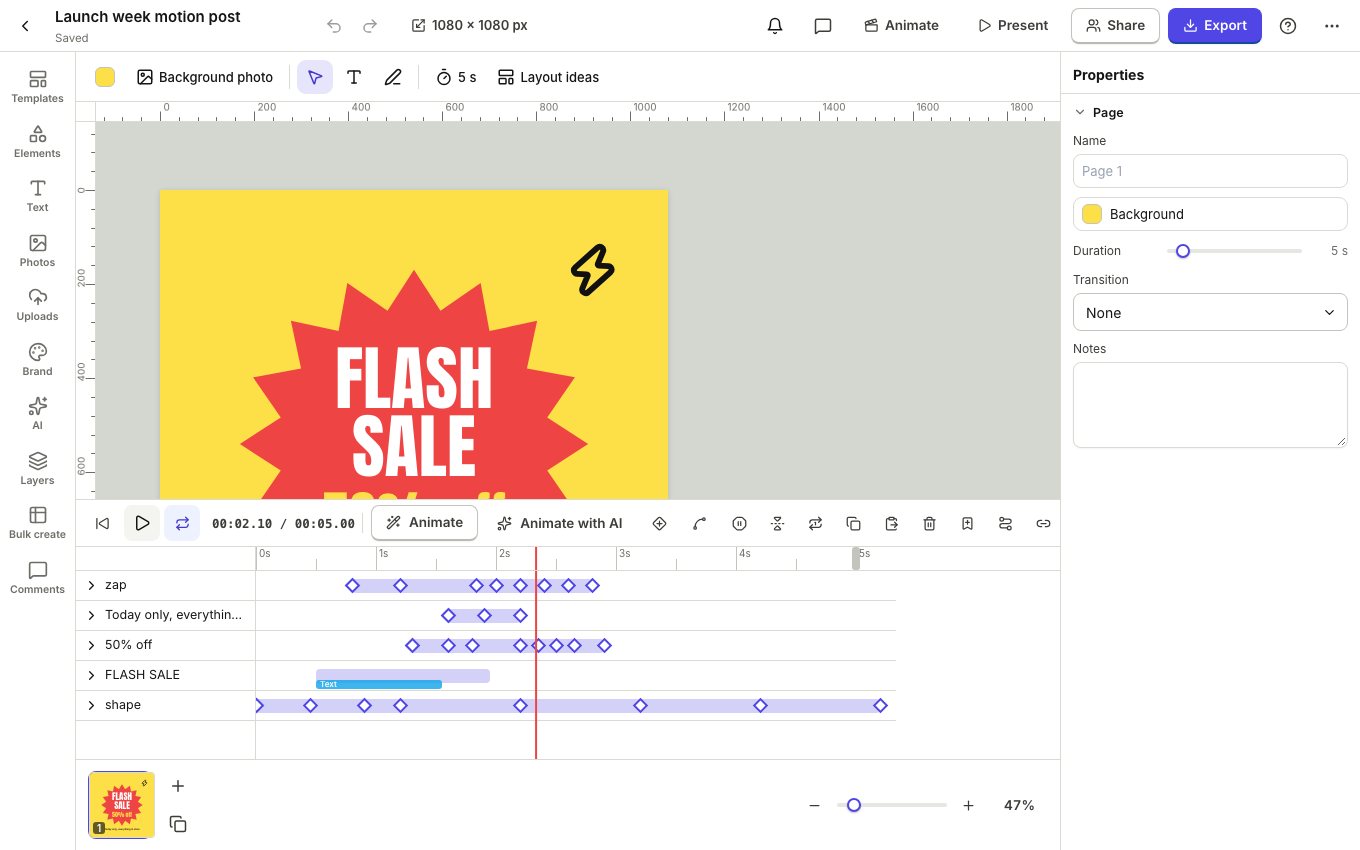
Any design can move. The timeline shows every element as a track with its keyframes, and exports to MP4, WebM, GIF and animated WebP.
Open the timeline
- Click Animate in the top bar.
- Press play (or Space) to watch the page. Drag the red playhead to any moment.
- Drag the end of the ruler to change how long the page lasts.
Animate in one click
- Select an element.
- Click Animate on the timeline and pick a preset: entrances like rise or pop, emphasis like pulse, exits and loops.
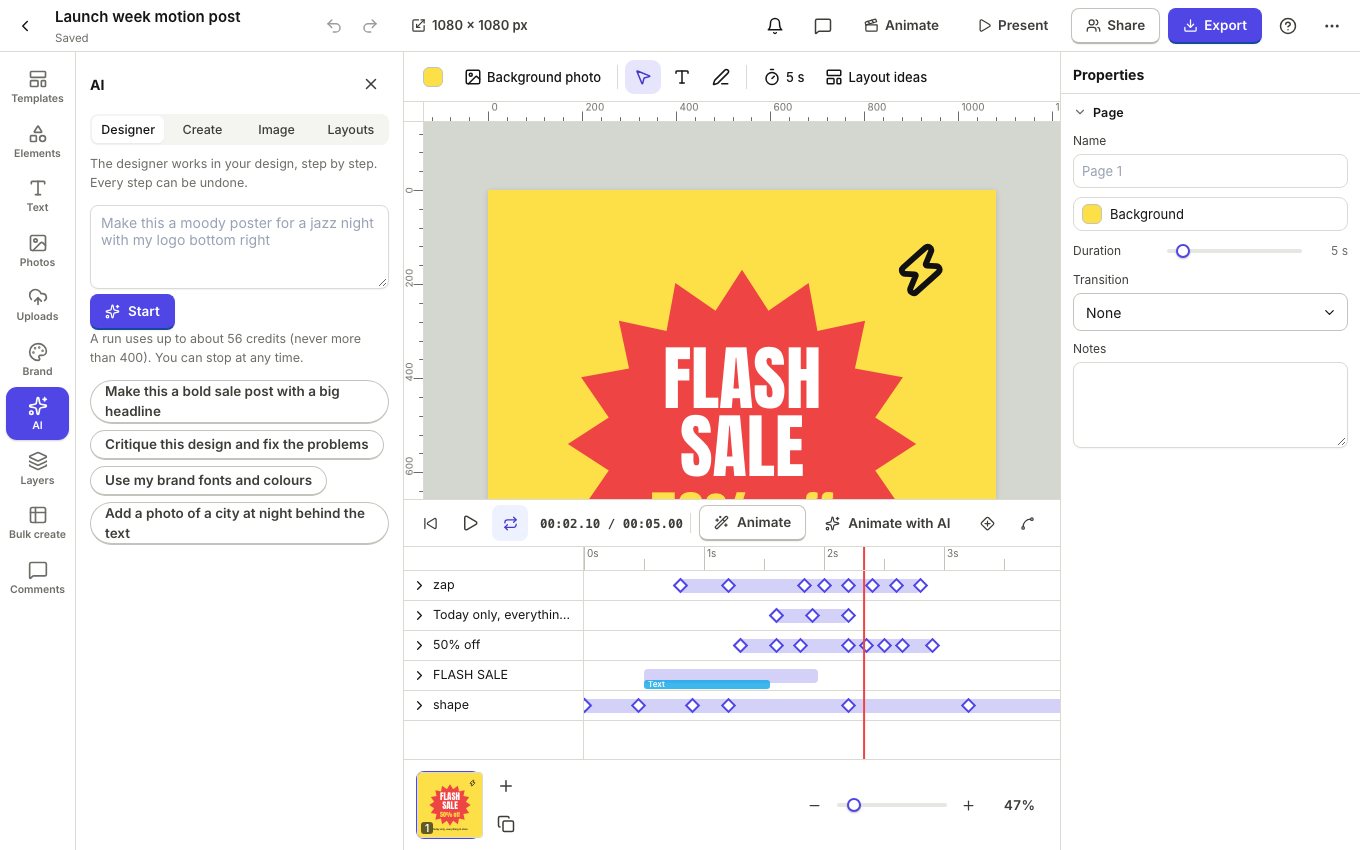
- Or click Animate with AI and choose a style: a motion designer picks entrances, text animation and timing for the whole page.
Keyframes and easing
Move the playhead, change the element (move it, scale it, fade it) and press K to add a keyframe. Drag keyframes to change their timing. The easing button sets how a change speeds up and slows down, and the motion path tool lets an element follow a line you draw.
Music and export
Add music from your uploads with the music button; animations can snap to its beat. When it looks right, click Export and choose MP4 video, WebM video, GIF or Animated WebP.
Video length depends on your plan. Free plans export short clips; Pro exports up to two minutes.