Getting started
DesignBat makes social posts, posters, flyers, presentations, print files and short videos in your browser. This guide gets you from an empty account to your first finished design.
Your home: My designs
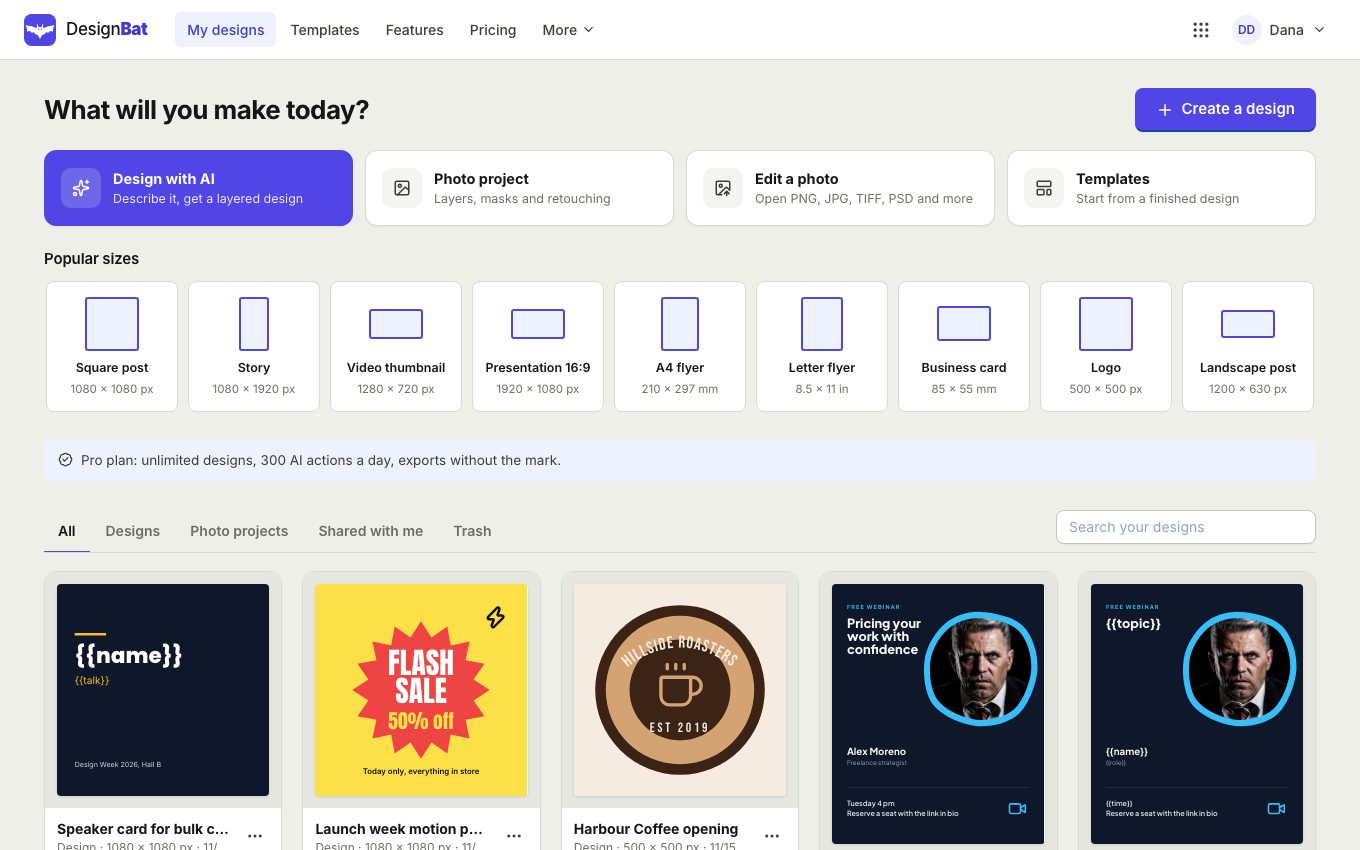
Sign in with your OfficeBats account and you land on My designs. The top shows the ways to start; below are your designs, newest first, with tabs for designs, photo projects, designs shared with you and the trash.
Start from a size
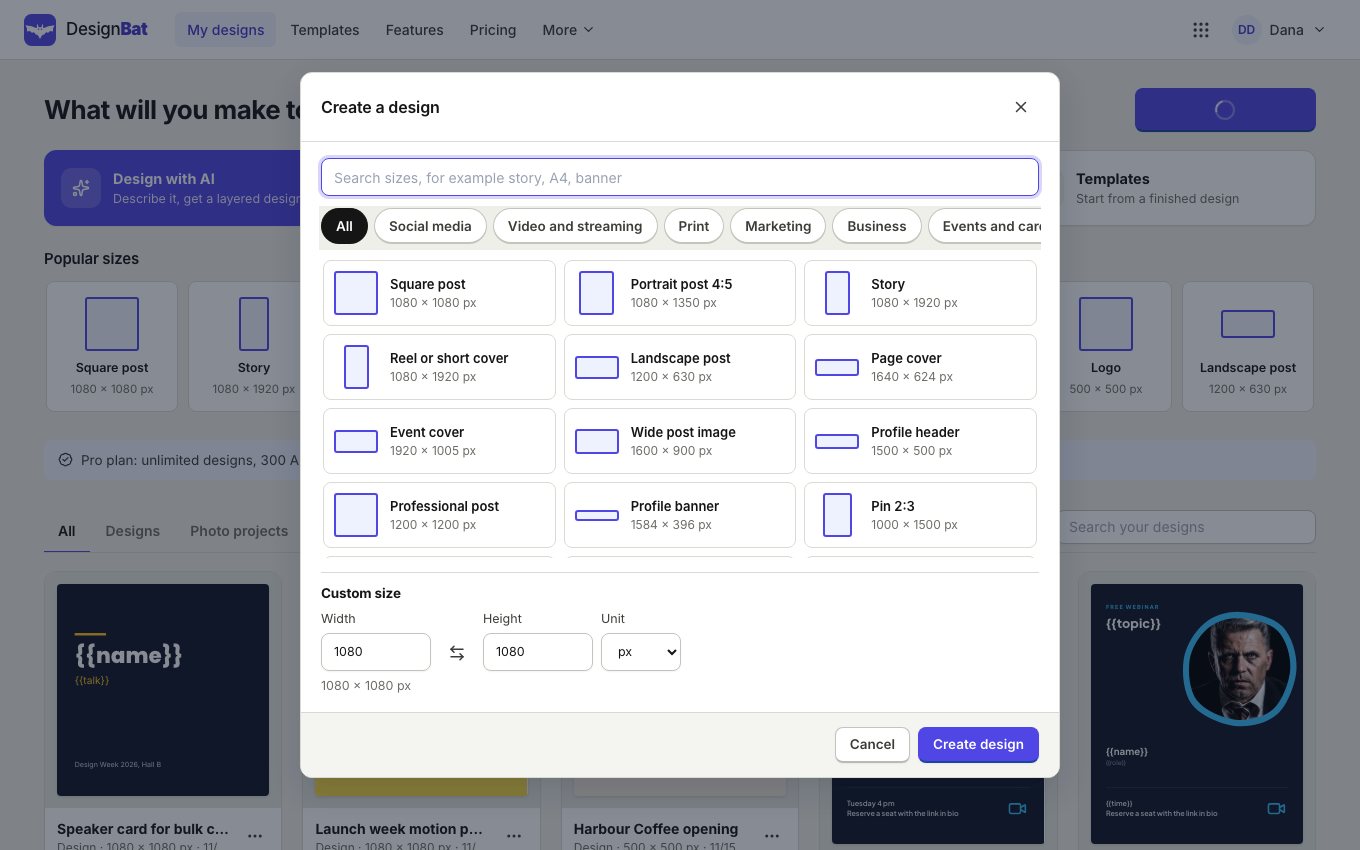
- Click Create a design, or one of the Popular sizes like Square post, Story or A4 flyer.
- Search the sizes (try "story", "A4" or "banner") or pick a category such as Social media, Print or Video and streaming.
- For anything else, type a Custom size in pixels, millimetres or inches.
- Click Create design. The editor opens with a blank page.
Start from a template
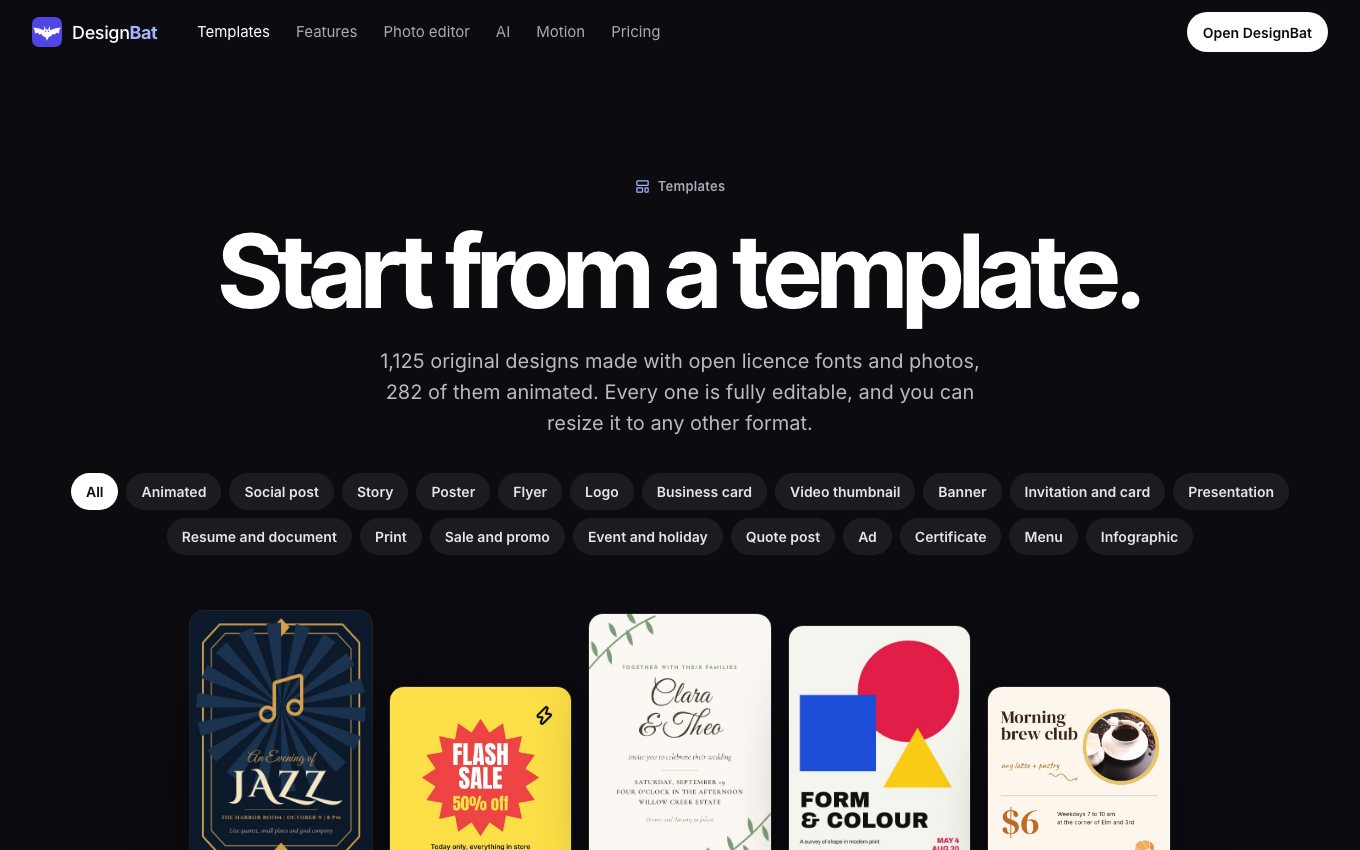
Templates are finished designs you change to your own words, photos and colours. There are over a thousand, many of them animated.
- Open Templates in the top bar.
- Search, or filter by category, shape, style and colour.
- Click a template, then Use this template. You get your own copy to edit; the template stays as it was.
Start from a description
- Click Design with AI on My designs.
- Describe what you need: the occasion, the words, the mood. Name your website and its facts and colours are used.
- Choose the size, the number of pages and a brand kit, then click Create design.
AI uses credits from your OfficeBats wallet. You always see the result as normal layers you can change.
Help while you work
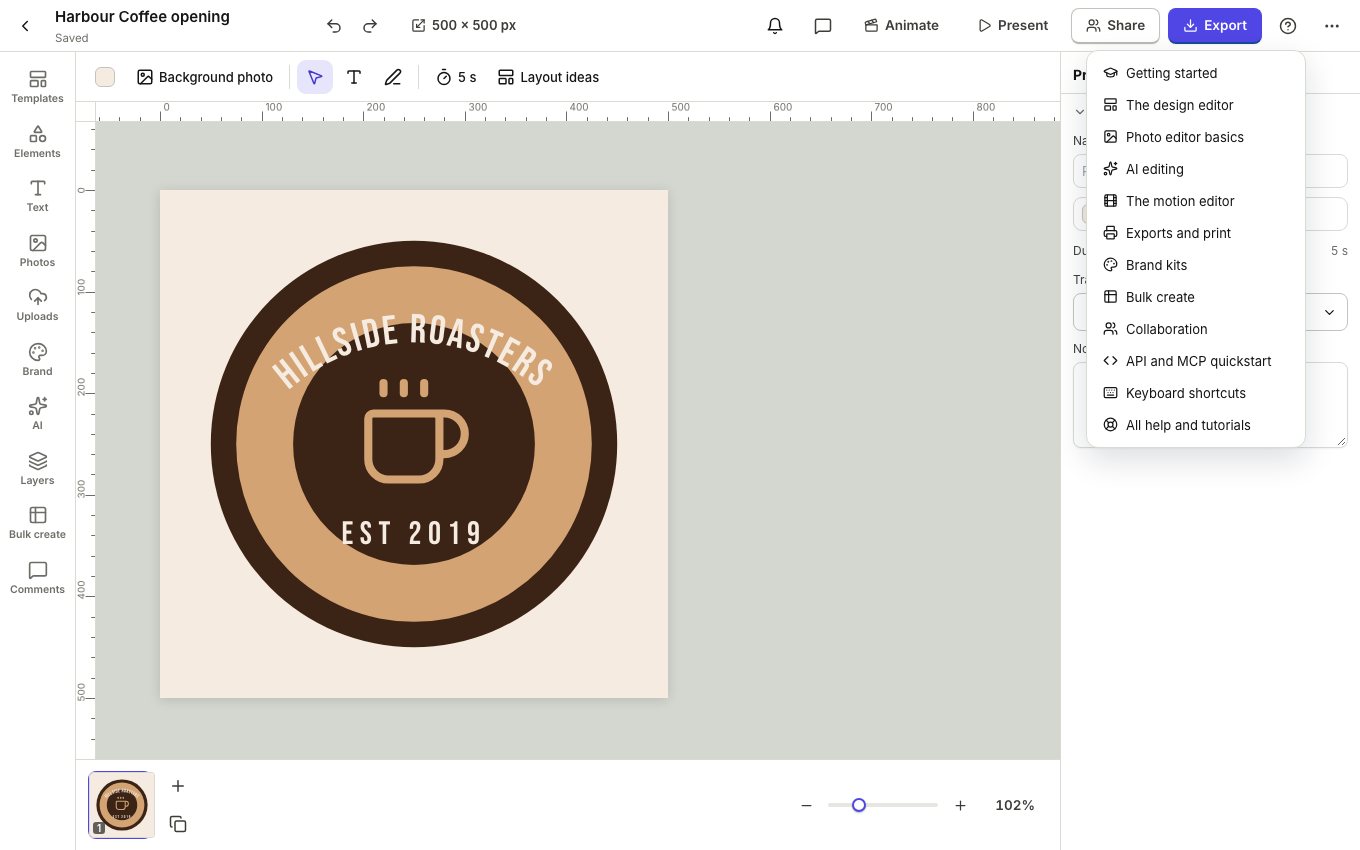
In the editor, the ? button in the top bar opens the Help menu with every tutorial, and ? on the keyboard shows the shortcuts. The photo editor has the same tutorials in its Help menu.
Saving and finding your work
Everything saves on its own: the word Saved under the design name tells you it is safe. A copy is kept in your OfficeBats Drive too. Rename, copy, share or move a design to the trash from the ... menu on its card; the trash keeps designs for 30 days.